Google Merchant Center Setup: The Short Answer
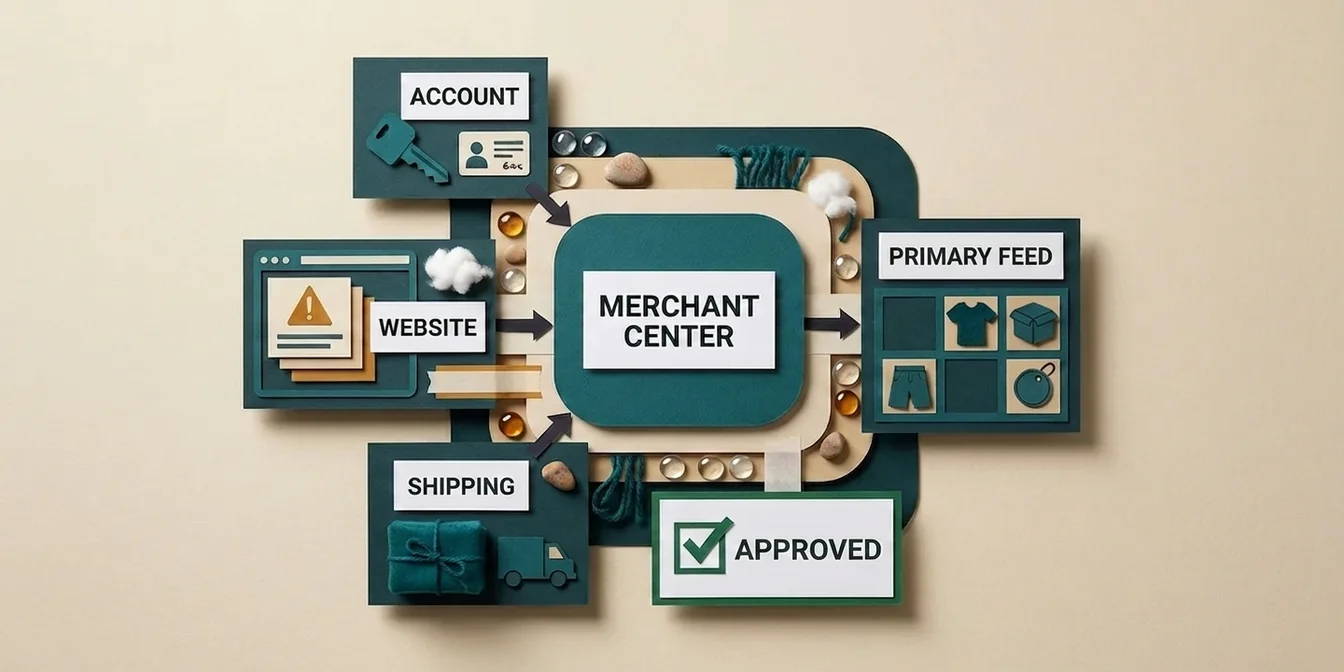
Google Merchant Center (GMC) is the control plane for every product you want surfaced on Google Shopping, Search, Maps, or through Performance Max campaigns. You set it up by creating a business account, verifying your website, configuring shipping and tax, and uploading your first primary feed. Budget two to four hours for setup day, plus three to five business days before Google approves your feed for the first time.
That sounds manageable. But according to StubGroup's 2025 suspension analysis, over 95% of Merchant Center suspensions trace back to a single root cause: Misrepresentation. This guide doesn't just walk you through the clicks. It shows you, at every step, where new accounts most often fail, and how to design around it.
Most new Merchant Centers don't get rejected because the feed is bad. They get rejected because the website doesn't look like it belongs to a real business. Understanding that before your first upload saves weeks of review purgatory.
Dennis Gerich, Founder & CEO, FeedOptimizer.AI
Before You Start: What You Actually Need
Before you open merchants.google.com, pull four things together in one place, otherwise you'll bounce between tabs all afternoon.
- A dedicated business Google account. No personal Gmail. A domain-anchored account (e.g., via Google Workspace) survives staff turnover and cleanly delegates to agencies later.
- The exact business address from your legal/about page. Name, street, ZIP, city, country: matching your website footer to the character. Every mismatch is a potential misrepresentation trigger.
- A phone number reachable in your business country. Google sometimes verifies via SMS or a callback during identity checks.
- Complete policy pages on your website. Refund policy, shipping policy, privacy policy, terms of service, and a visible contact page, all linked from the footer, all reachable, no 404s. This single requirement matters more in 2026 than ever, and we'll come back to it.
If you sell into the US: confirm your displayed prices match the prices at checkout to the cent. If you sell internationally: use one feed per country/language combo and don't try to overload a single feed with currency conversion logic, because that pattern fails the price-match audit fast.
Step 1: Create the Merchant Center Account
Direct answer: Go to merchants.google.com, sign in with your business Google account, enter your business name, country, and time zone, and accept the terms. Country and time zone determine which Shopping surfaces you appear on and which tax rules apply. Both fields are painful to change later, so choose deliberately.
The flow:
- Open
merchants.google.com→ "Get started". - Business name (must match your legal/about page exactly), country (your headquarters, not your shipping destination), time zone (for reporting consistency).
- Choose where customers check out: "On my website" for standard e-commerce.
- Pick the surfaces you want to use: free listings are enough for day one. Paid Shopping and Performance Max campaigns unlock later when you link Google Ads.
You'll land directly inside the current interface, the only UI Google has shipped since it completed the migration in September 2024. Google first marketed it as "Merchant Center Next" and dropped the "Next" label in mid-2026, so it's now simply called Google Merchant Center. If a guide you read online still references "Feeds" and "Programs", it's stale. Yours are now called data sources and add-ons.
Step 2: Verify and Claim Your Website
Verifying proves to Google that you control the domain. Claiming binds it exclusively to your Merchant account so no other account can run it in parallel. Merchant Center Next supports five methods. Pick the one that fits your stack:
| Method | When it fits |
|---|---|
| HTML meta tag | Shopify, WooCommerce, BigCommerce, most CMS |
| HTML file upload | Stores with FTP or root access |
| Google Tag Manager | When a GTM container is live and you're admin |
| Google Analytics | When GA4 is already installed (often auto-verifies) |
| DNS record | When your team manages the domain itself |
Search Console auto-verify: if your domain is already verified in Search Console under the same Google account, Merchant Center will usually accept the verification silently in the background. It's the fastest path, and the most resilient if you ever move to a headless front-end.
Important: the verification tag has to stay on the site permanently. Remove it later (during a theme rebuild, for example) and your account loses its claim, and products fall straight out of the index.
Step 3: Avoid Misrepresentation with the Policy Pages
Straight to it: Over 95% of GMC suspensions get tagged "Misrepresentation". Google isn't saying "you're lying". Google is saying "your website doesn't feel trustworthy enough to send buyers to." The five most common triggers:
- Refund and return policy missing, hidden, or unclear. Buried in a single line of fine print or behind a login does not count.
- Privacy policy missing or generic boilerplate that doesn't reference your actual store.
- Terms of service absent or contradicting what's on the checkout page.
- Contact page with no working channel: at minimum a monitored email or phone number. A bare contact form often isn't enough.
- A freshly registered domain (under 6 weeks old) with no external trust signals. A Google Business Profile, a LinkedIn page, and a handful of social mentions move the needle here visibly.
Walk your site like a stranger about to spend $500. Within 30 seconds, can they find the return policy, the shipping cost, and a way to email you? If not, fix it before you upload a single product. That one hour is cheaper than three weeks in a suspension review loop. If your account does get suspended later, you'll know the most likely cause, and our breakdown of the 7 most common Google Shopping feed errors covers what to do at the product level.
Step 4: Configure Shipping and Tax
In short: shipping and tax settings live at the account level by default and apply to every product unless you override them with feed attributes. Mismatch between the feed and the cart is one of the top causes of product disapprovals: Google's automated review walks your funnel and compares to the cent.
Shipping setup:
- Flat rate: simplest model, works for stores with a single fulfillment carrier.
- Free shipping over $X: configure the threshold inside GMC, not just on your site, otherwise Google has no idea and silently drops your "free shipping" badge.
- Carrier-calculated: for stores integrating UPS, USPS, FedEx, or DHL at real-time rates.
Tax setup (US specifics):
- Sales tax is configured per state. For US sellers, the cleanest path is Auto-Tax (Google sources rates per state automatically) or manual per-state rules if you're past the nexus threshold in only a few states.
- If you're using a tax automation tool like TaxJar or Avalara on your site, make sure GMC's setting matches what's actually charged at checkout, because a 0.5% discrepancy is enough to trigger a price-mismatch disapproval.
If you sell across multiple countries, splitting them into separate data sources (or moving to a Multi-Client Account (MCA), one sub-account per domain) is the cleaner long-term setup.
Step 5: Set Up Your Primary Feed
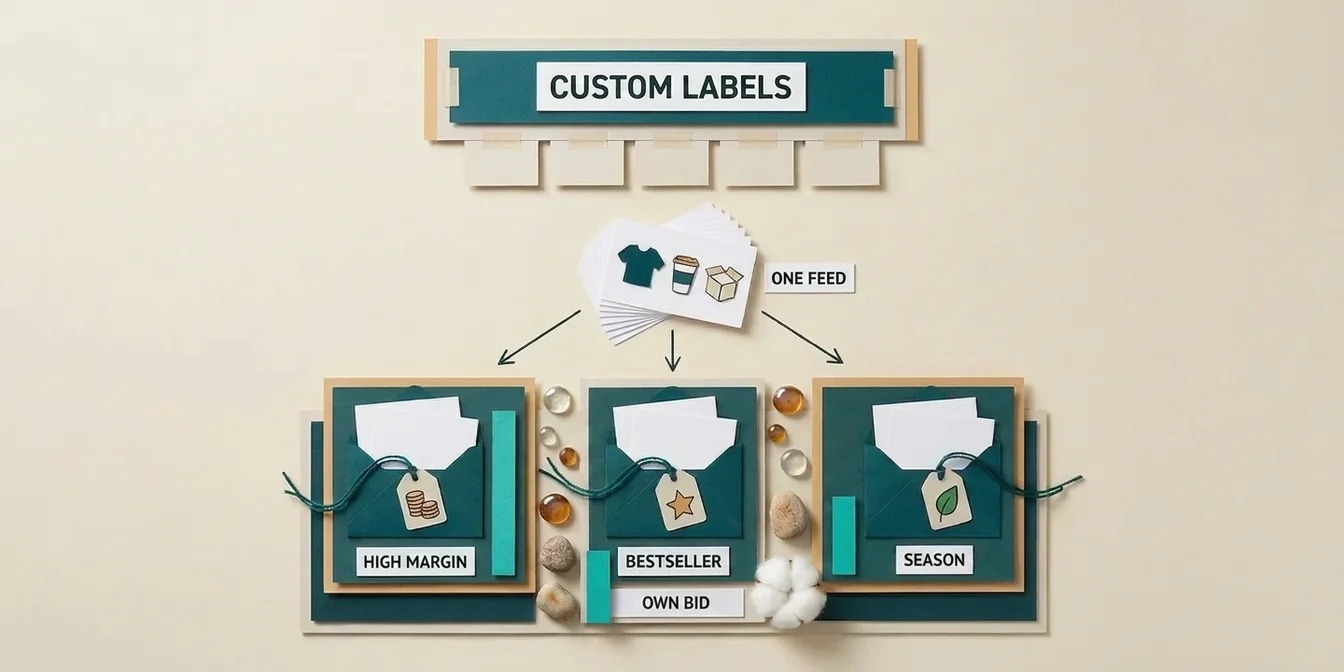
Direct answer: The primary feed (called "primary data source" in Merchant Center Next) is the only source that can add products, remove products, and define country/language targeting. Everything else (title optimizations, custom labels, missing GTINs) belongs in a supplemental feed as a second data source.
Four ways to push product data into Google:
- File upload (XML/TSV/CSV): manual; good for very small catalogs or first-time uploads.
- Scheduled fetch: Google pulls a hosted file from your URL on a schedule (daily, weekly, or monthly). The default path for static-site setups and headless stores.
- Google Sheets: pragmatic for catalogs under 500 SKUs or quick edits.
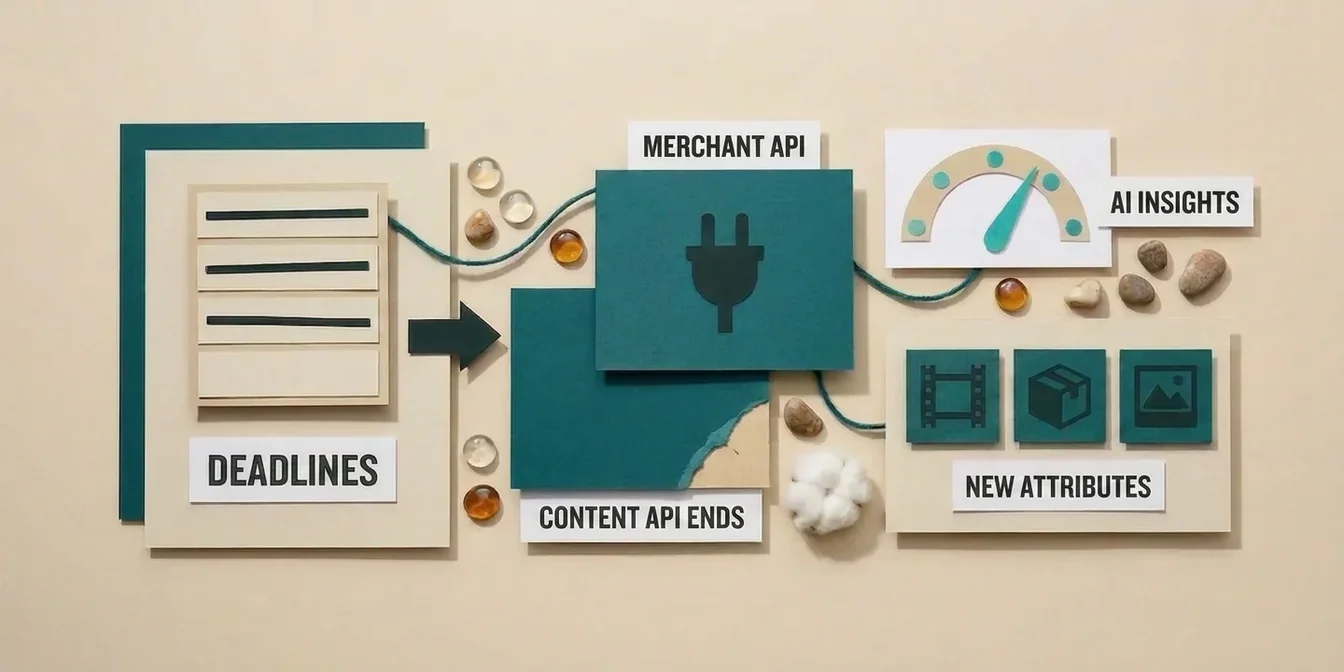
- Merchant API v1: programmatic. Critical for 2026: start any new integration on Merchant API v1. The legacy Content API for Shopping shuts down on August 18, 2026, and
v1betahas already been offline since February 28, 2026 (Google Merchant API updates).
For Shopify, WooCommerce, and BigCommerce stores, the official Google channel app handles the API sync automatically. You authenticate once, and products start flowing into GMC on their own.
Which attributes do you actually need?
Required for every product:
id, title, description, link, image_link,
availability, price
Two of these cause most first-time rejections: price must include the currency (e.g., 19.99 USD) and match the landing-page price to the cent; availability accepts only the fixed values in_stock, out_of_stock, preorder, or backorder, no free text.
Plus, depending on category:
brandandgtin(ormpn) for branded items, see Google's GTIN requirementscondition(defaults to "new", but set "used" / "refurbished" where applicable)- Apparel additionally:
gender,age_group,color,size - Private label / handmade:
identifier_exists: false+brand+mpn
If you're hunting for additional lift on the content side, the detailed guides on optimizing Google Shopping titles and product descriptions cover the formulas that currently pull the strongest CTR on Google Shopping.
Step 6: Link Google Ads and Analytics
In Merchant Center Next: Add-ons → Google Ads → Link. If you're signed in with the same Google account, the platform auto-detects your Ads account. Linking unlocks paid Shopping campaigns and Performance Max, plus reporting at the SKU level instead of just the ad-group level. With Performance Max in particular, serving hinges almost entirely on feed quality, since the algorithm learns primarily from your product data. Our guide on Performance Max and feed quality covers how to tune the feed specifically for it.
Linking GA4 is optional but strongly recommended. Only with it can you see which optimized products actually drove revenue, not just clicks. If you're at the stage of choosing a tool to optimize the feed in the first place, our 2026 Feed Management Tool Comparison breaks down the realistic options for solo merchants, agencies, and enterprise teams.
Merchant Center Next: What Actually Changed
In two sentences: Google finished migrating every account in September 2024. The classic UI doesn't exist anymore. The content is mostly the same, but names and paths have shifted:
- "Feeds" → "Data sources" (primary + supplemental)
- "Programs" → "Add-ons"
- Auto-detection of product data: Google scrapes title, price, and image directly from your website if no feed is uploaded. Convenient for tiny catalogs, risky beyond a few hundred SKUs, and the auto-extracted data is consistently incomplete.
- AI Product Studio: built-in tools for background removal, image upscaling, and motion from stills. Background removal and upscaling are available in nearly every market; the video-from-stills feature is currently limited to the US, UK, Canada, Australia, Japan, and India.
- Notification email archive: retired on June 25, 2025. Notifications now live in-app only.
- Name change (mid-2026): Google dropped the "Next" label. The interface is now simply called Google Merchant Center again, a pure rebrand with no changes to accounts, feeds, or campaigns.
If your plan is to run an optimized secondary feed alongside your main feed (the standard pattern for risk-free title and description optimization), head to the dedicated Supplemental Feed guide.
How FeedOptimizer.AI Helps with Step 5
Steps 1 through 4 are click-work you do once. Step 5, feed quality, is the lever you turn for the long-term ROAS of your Shopping campaigns. That's exactly where FeedOptimizer.AI fits:
- Connect: Link your Merchant Center via OAuth in two clicks.
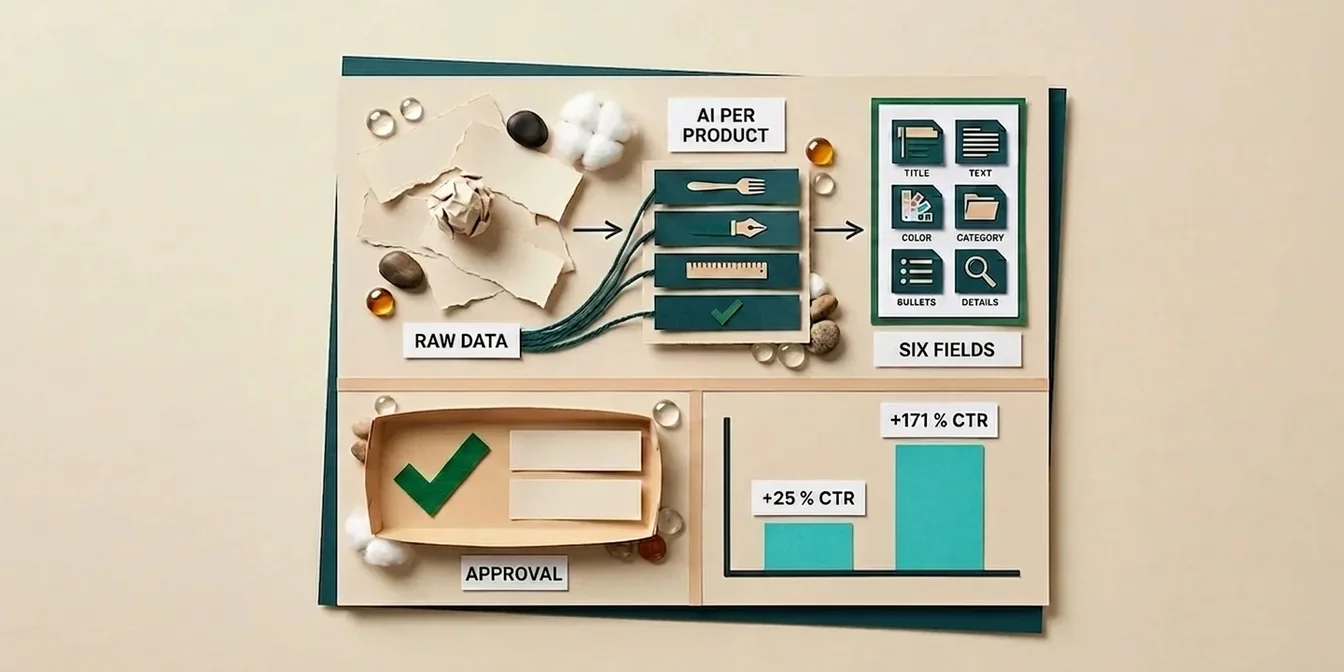
- Optimize: AI rewrites titles, descriptions, and attributes per product, context-aware per Google Product Category rather than via static rules.
- Upload: Optimized data syncs automatically as a supplemental feed. Your primary feed stays untouched, rollback is one toggle away.
No CSV juggling. No changes to your store backend. The setup day you invest today pays out the moment optimized titles and descriptions start serving in your account.
Once your Merchant Center is up: .
Frequently Asked Questions
Is Google Merchant Center free?
Yes. The platform itself and Free Listings on the Shopping tab are free. You only pay when you run Shopping or Performance Max campaigns through the linked Google Ads account, billed per click.
How long does Merchant Center verification take?
Website verification is usually instant once the HTML tag is in place or the Search Console link is active. First-time feed approval typically takes 3 to 5 business days. If Google triggers an additional identity or business verification (more common since 2025, sometimes involving video or document checks), allow up to 7 business days.
Can I use one Merchant Center for multiple stores?
Yes, through a Multi-Client Account (MCA), also called an "Advanced Account". An MCA acts as an umbrella for sub-accounts (one per domain). Standalone accounts are designed for a single domain only; piling multiple domains into one standalone account quickly triggers verification conflicts.
Do I need a GTIN for every product?
For most branded products with a manufacturer-assigned GTIN: yes, required. For private label, handmade, custom, or one-off items, set identifier_exists: false and provide brand + mpn instead. Never invent a GTIN. That's an instant account suspension and very hard to reverse.
Why was my new account suspended immediately?
In over 95% of cases: misrepresentation. Typically a missing or incomplete refund policy, no working contact channel, business info that doesn't match between site and feed, or a freshly launched domain with no external trust signals. Fix the underlying site issue before you hit "request review", otherwise you loop straight into another denial.
Bottom Line
Setting up Google Merchant Center is less a technical exercise than a trust exercise with Google. Clean policy pages, an unambiguous business identity, exact price consistency between feed and checkout, and a deliberately chosen feed method decide whether you're selling in three days or stuck in review for three weeks. Get Step 3 (the policy pages) right and you've already removed most of the risk. The rest, feed quality, you can optimize calmly from there.