Why Feed Errors Are So Costly
Every error in your Google Shopping feed can cause products to be disapproved, limited, or simply not shown. In the worst case, your entire account gets suspended.
In practice, a large share of Merchant Center accounts carry at least one feed error that hurts performance, often unnoticed for weeks until revenue drops.
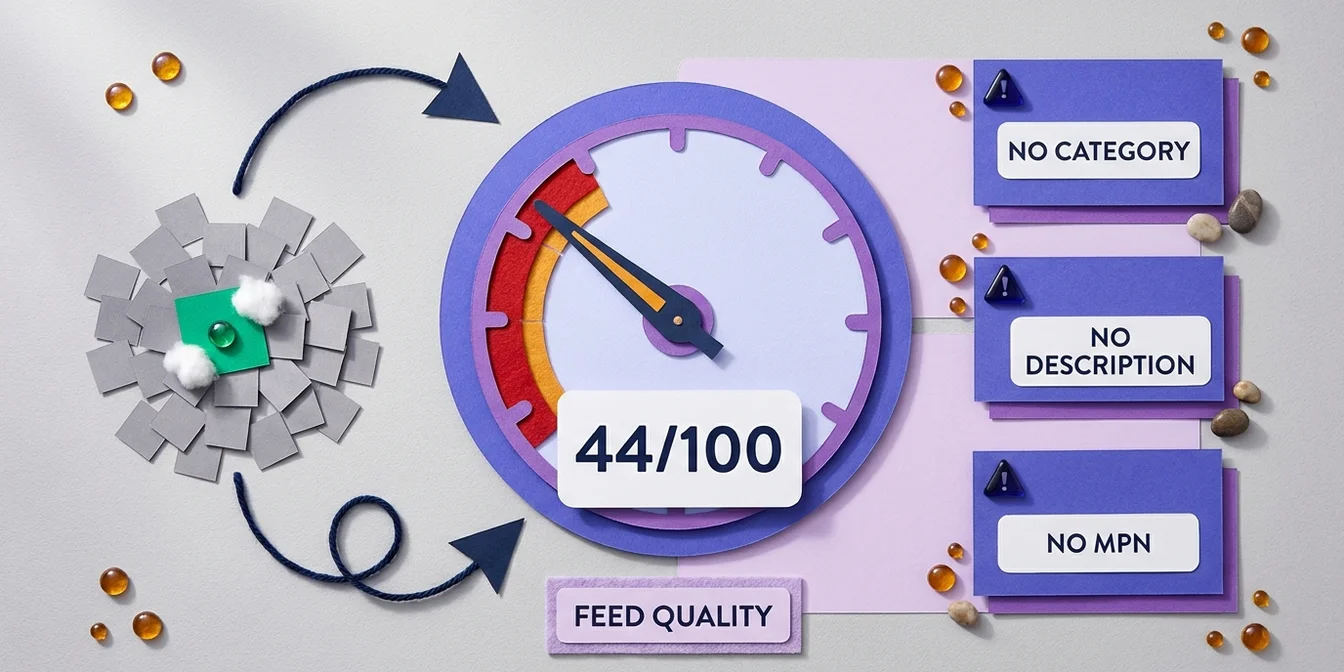
The quickest way to find out whether yours is one of them is the free feed check: it scores every product in your feed and names the concrete weaknesses, so you can match the seven errors below against your own data instead of guessing.
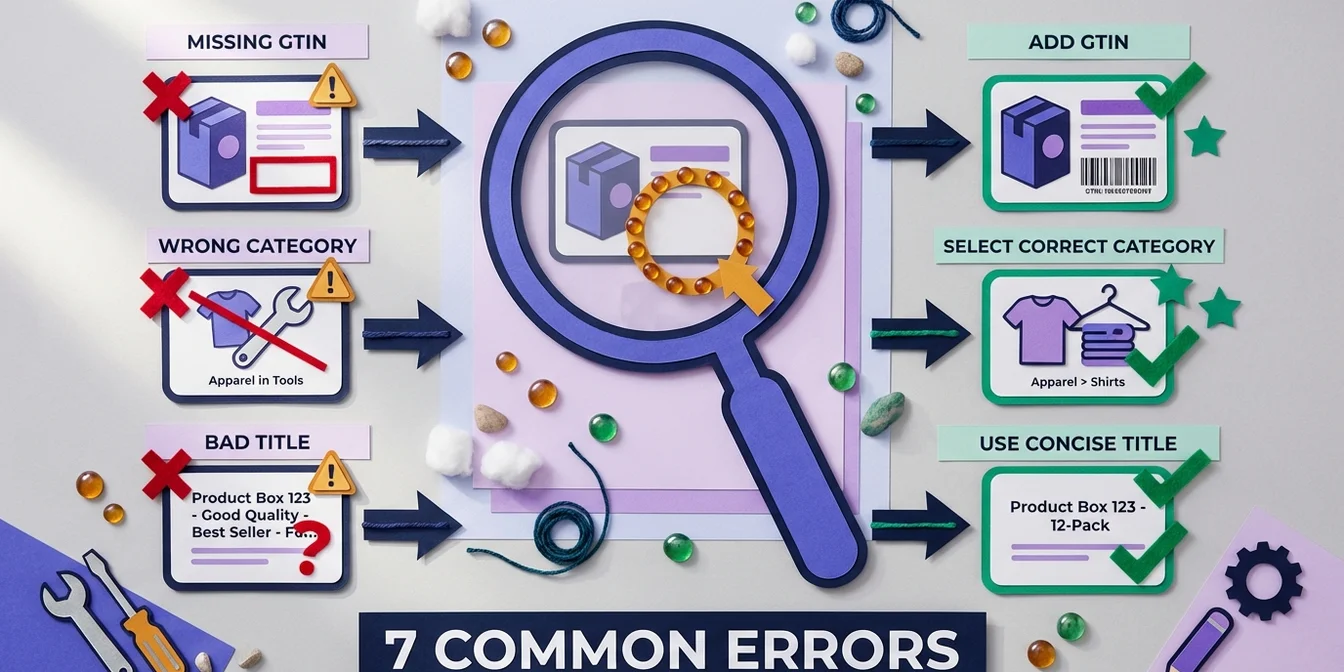
Error 1: Missing or Inaccurate Product Categories
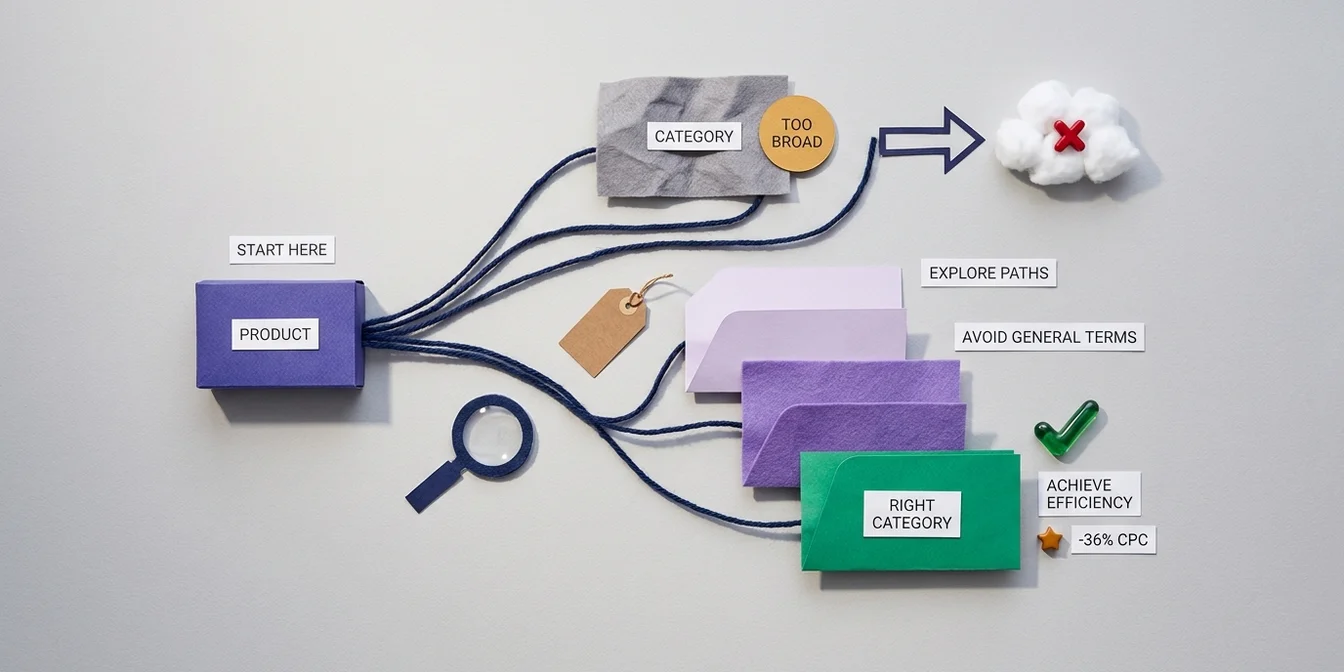
Google uses the product category (google_product_category) to match your product to the right search query. Missing or overly generic categories lead to fewer impressions.
Bad: Apparel
Better: Apparel & Accessories > Clothing > Tops > T-Shirts
Solution
- Use the Google Product Taxonomy and select the most specific category available, more levels beats a generic one.
- Also fill in the
product_typeattribute with your own catalog structure, it covers gaps the standardized Google taxonomy doesn't capture. For a full rundown of the relevant feed attributes, see our feed attributes guide. - In Merchant Center, check the Diagnostics tab for products with a missing or overly generic
google_product_category, and work through that list first.
Error 2: Product Titles Without Search Intent
A title like "Item 12345 Blue" helps neither Google nor the customer. The title is the most important attribute for Google Shopping ranking.
Bad: Item 4711 BL-M
Better: Tommy Hilfiger Men's Polo Shirt Regular Fit Blue Size M
Solution
Use the structure: Brand + Product Type + Attributes. Or let FeedOptimizer.AI optimize your titles automatically with AI. For industry-specific formulas and before/after examples, see our guide to optimizing Google Shopping titles.
Error 3: Missing GTIN/UPC
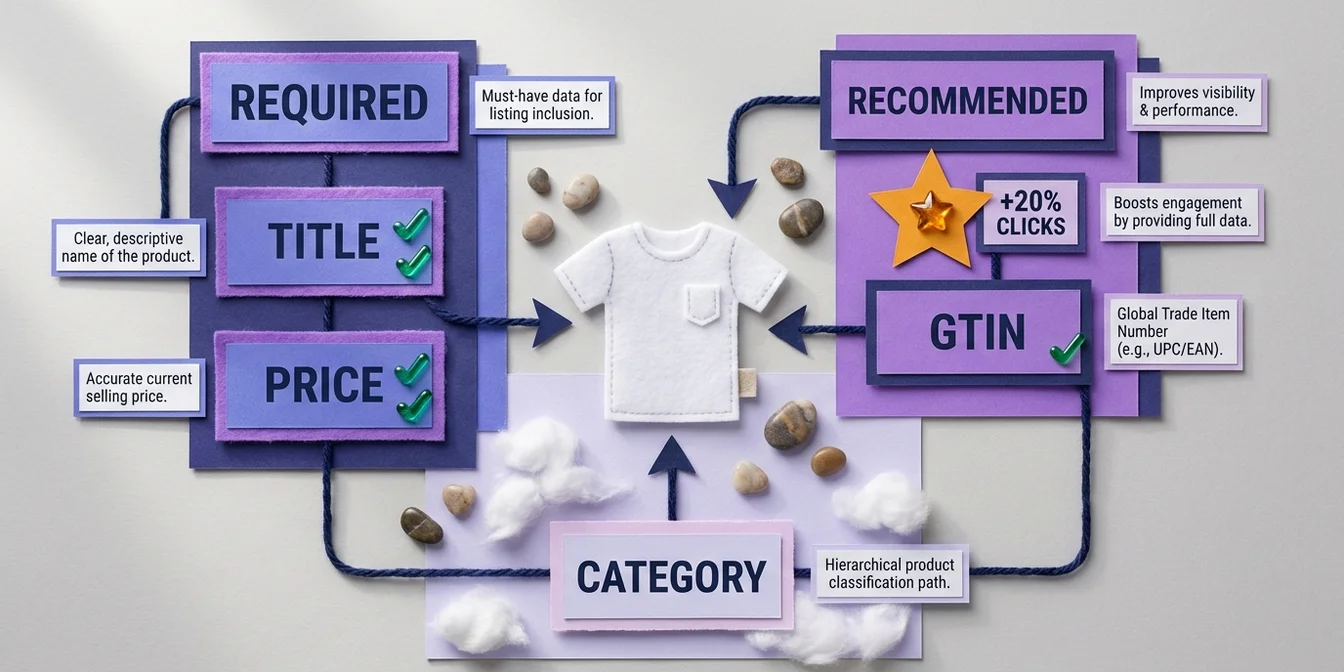
The Global Trade Item Number (GTIN) is mandatory for most products. Without a GTIN, your products are often limited or not shown at all.
Solution
- Request the GTIN from the manufacturer or wholesaler
- For self-made products: set
identifier_exists = false - Never invent GTINs, this leads to account suspension
For edge cases like bundles, handmade goods, or generic brands, see our GTIN requirements guide.
A disapproved product doesn't start costing you the moment it gets rejected, it costs you every day you don't notice. Catching feed errors before upload is always cheaper than finding them later in your Merchant Center diagnostics.
Dennis Gerich, Founder & CEO, FeedOptimizer.AI
Error 4: Image Quality Below Minimum Requirements
Google has strict requirements for product images:
- Minimum 500x500 pixels, the same threshold across all categories (the old 100x100 / 250x250-for-apparel minimum was raised in 2026; Google has been warning about violations since April 2026, with the new threshold enforced starting January 31, 2027)
- White background preferred
- No watermarks, logos, or promotional text on the image
- No placeholder or generic images
Solution
Invest in professional product photography. The ROI is significant, good images noticeably lift CTR in our experience. For more levers that lift clicks, see our guide to improving Google Shopping CTR.
Error 5: Outdated Prices and Availability
If the price in your feed doesn't match the price on your website, products are immediately disapproved. The same applies to availability.
Solution
- Feed updates at least every 24 hours
- For frequent price changes: set up the Merchant API (Content API for Shopping is being retired on August 18, 2026) or automatic feed updates
- Add structured data on landing pages so Google can verify prices
Error 6: Missing Shipping Configuration
Google requires transparent shipping costs. Missing or incorrect information can cause your entire feed to be disapproved.
Solution
- In Merchant Center under Shipping and returns, set up a shipping cost table per country or region, not one flat rate for every market.
- If you offer free shipping above an order value (e.g., $50+), enter the threshold exactly as it applies on your website, mismatches lead to disapprovals.
- Keep transit times (min./max. business days) up to date too, Google surfaces them in the listing snippet.
- If individual products deviate from your standard rates (e.g., oversized items), use the
shippingattribute directly in the feed instead of the blanket Merchant Center setting.
Error 7: Duplicate Products
When the same product appears in the feed with different IDs, your own products compete against each other. This dilutes your performance.
Solution
- Use unique, consistent IDs
- Use
item_group_idfor variants (sizes, colors): a T-shirt in red and blue gets two differentidvalues but the sameitem_group_id, so Google treats them as variants instead of competitors - Filter for duplicate item IDs in the Merchant Center Diagnostics tab to identify affected products
- Check especially after feed migrations or e-commerce platform switches, that's where duplicates show up most often
Frequently Asked Questions About Google Shopping Feed Errors
How do I find feed errors in Merchant Center?
Open the Products > Diagnostics tab in Merchant Center. It lists every disapproved or limited product along with the specific reason.
How often should I update my Google Shopping feed?
At least every 24 hours. If prices or stock change frequently, connecting through the Merchant API is more reliable than a fixed schedule.
Which feed error costs the most revenue?
Missing GTINs and outdated prices, since both trigger an immediate disapproval of the affected product, often unnoticed for weeks.
Conclusion: Feed Quality Is Not Optional
A clean, optimized feed is the foundation for successful Google Shopping campaigns. Each of the errors mentioned above can massively impact your performance.
FeedOptimizer.AI detects and fixes these errors automatically. Start with the free feed check and see which of the 7 errors your feed is making right now.