What Is a Supplemental Feed?
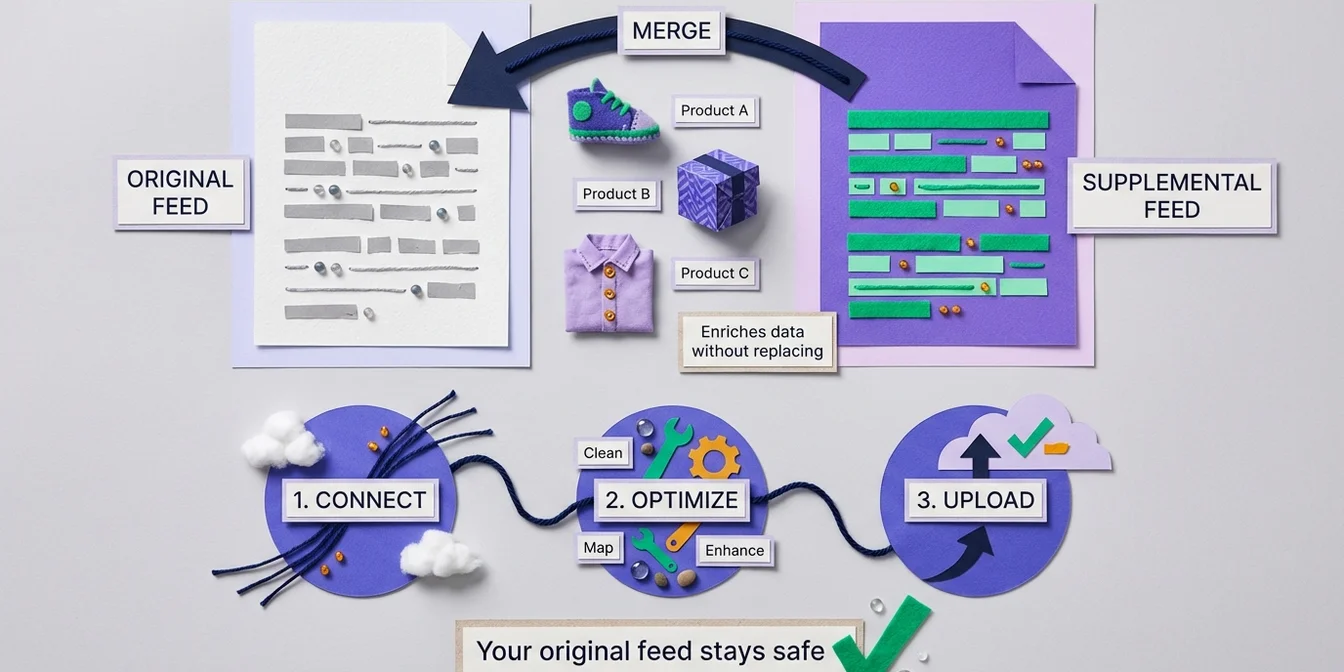
A supplemental feed is an additional data source in Google Merchant Center that supplements your existing primary feed. It selectively overwrites specific attributes (e.g., titles or descriptions) without modifying the original feed.
Important: A supplemental feed cannot add new products, it can only supplement or override existing products from the primary feed.
Naming update: Google officially renamed feeds in Merchant Center to data sources, so a supplemental feed now shows up in the interface as a supplemental data source. Both terms mean the same thing. Since "supplemental feed" remains the more common search term, we stick with it throughout this guide.
Why Supplemental Feeds Are the Best Optimization Method
Your Original Feed Stays Untouched
This is the biggest advantage: Your primary feed, whether it comes from your e-commerce platform, an agency, or a feed management tool, is never modified. Optimizations sit as a separate layer on top.
Easy Rollback
If an optimization doesn't deliver the desired results, you can simply remove the supplemental feed. Your original data takes effect immediately.
The biggest barrier to feed optimization isn't skill, it's the fear of breaking something. A supplemental feed removes that fear entirely: your primary feed stays untouched, and you can revert at any time. Optimizing without risk is the only way to test fast.
Dennis Gerich, Founder & CEO, FeedOptimizer.AI
Platform Independent
Whether you use Shopify, WooCommerce, Magento, or a custom system, the supplemental feed works the same way and requires no changes to your store.
How to Set Up a Supplemental Feed
This requires an already-running primary feed in Merchant Center. If you're still setting up your account, start with our Google Merchant Center setup guide.
Step 1: Enable the Add-On and Create the Data Source
- First enable the Advanced data source management add-on under Settings > Add-ons, without it the Supplemental sources tab stays hidden
- Go to Settings > Data sources and select the Supplemental sources tab
- Click Add supplemental product data and choose an input method: a file, a Google Sheets template, or API
Step 2: Prepare Feed File
Your supplemental feed must contain at least an id column that matches exactly the id of your products in the primary data source, including letter case. A single mismatched digit or a different case means Google won't apply the update for that product. Besides that, include only the columns you want to override.
Example CSV:
id,title,description
SKU-001,"Nike Air Zoom Pegasus 41 Men's Running Shoe Black","The Nike Air Zoom Pegasus 41 is a versatile running shoe..."
SKU-002,"Adidas Ultraboost Light Women's Running Shoe White/Pink","The Adidas Ultraboost Light offers maximum cushioning..."
Step 3: Upload and Link Feed
Upload the file, choose the matching feed label/language combination, and link it to your primary data source. Google processes the supplemental feed during its next automatic processing run.
Best Practices for Supplemental Feeds
- Only override optimized attributes, Don't send all fields, only the ones you've actually improved, usually titles and descriptions (see our guide to optimizing Google Shopping titles)
- Ensure ID matching, The ID in the supplemental feed must exactly match the primary feed
- Update regularly, Add the affected IDs to the supplemental feed after every new optimization round, otherwise products newly added to the primary feed run without overrides
- Test before rollout, Optimize 20 to 50 products from one category first and compare CTR and impressions over 1 to 2 weeks before switching the entire feed (more on this in our guide to improving Google Shopping CTR)
Frequently Asked Questions About Supplemental Feeds
Can a supplemental feed add new products to Merchant Center?
No. A supplemental feed can only override attributes of products that already exist in the primary feed. New products always have to go through the primary feed.
How long does Google take to process a supplemental feed?
Google doesn't publish a fixed timeframe for this. As long as the link to the primary data source stays active, Google applies updates automatically on every new processing run.
Does a supplemental feed cost anything in Google Merchant Center?
No, creating and linking a supplemental data source is a free Merchant Center feature and doesn't require a separate Google Ads budget.
The Easier Way: FeedOptimizer.AI
Instead of manually creating and uploading CSV files, you can use FeedOptimizer.AI:
- Connect your Merchant Center in 2 clicks
- Optimize titles and descriptions with AI, individually or all at once
- Upload happens automatically as a supplemental feed
No CSV export, no manual upload, no risk to your original feed.
FeedOptimizer.AI hosts your supplemental feed automatically: .