What are custom labels in Google Shopping?
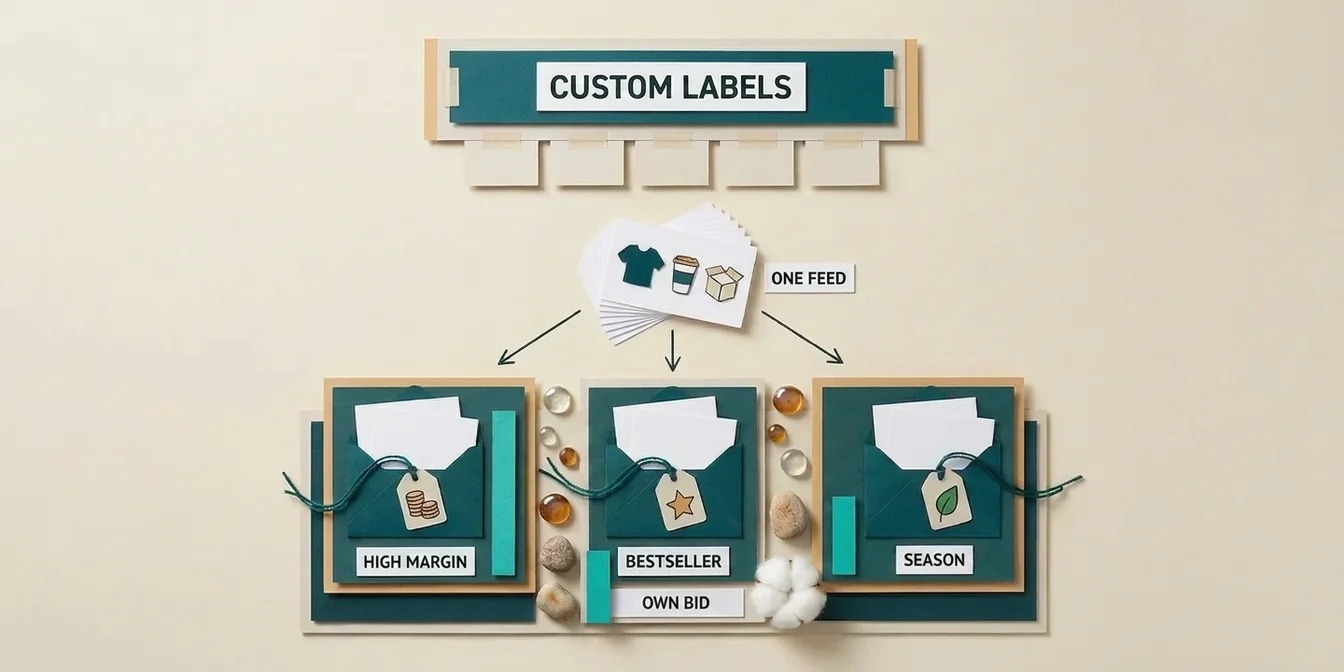
Custom labels in Google Shopping are five freely definable feed attributes in Merchant Center (custom_label_0 through custom_label_4) that let you group products by your own business logic: margin, bestseller status, season, price tier, or inventory level. They don't change which searches your product shows up in. Their only job: give you a segmentation handle inside Shopping and Performance Max campaigns so you can control bids, budgets, and ROAS targets per product group.
Here's the mistake most merchants make: they structure campaigns by product_type or brand, by data Google already knows. Custom labels instead carry information only you have: that Product A earns a 42% margin and Product B just 8%. That's exactly the knowledge the bidding algorithm needs to steer your budget toward what actually turns a profit.
According to Google's Merchant Center documentation, you get five custom label attributes of 1–100 characters each, with up to 1,000 unique values per attribute. This guide shows how to assign them strategically, populate them automatically, and turn them into real ROAS gains.
Why custom labels are the most underused lever in your feed
Custom labels are the single most powerful structuring tool in Google Shopping, and the least used. The reason is simple: without clean label data, the algorithm can't tell your high-margin bestseller from your clearance stock. Both get the same bid, the same budget, the same priority, and your ad spend spreads evenly instead of profitably.
A quick calculation makes it concrete. Take two products with the same $50 selling price and an assumed 10% conversion rate (breakeven CPC = gross profit × conversion rate):
- Product A has a 10% margin → $5 gross profit. Its breakeven max CPC is about $0.50.
- Product B has a 40% margin → $20 gross profit. Its breakeven max CPC is about $2.00.
Give both products the same max bid and you systematically overpay on Product A and underbid on Product B. Custom labels fix exactly that: you tag A as margin_low and B as margin_high and give each group its own ROAS target. Store Growers documents a case study where restructuring by performance tier lifted ROAS from 3.5 to 5.7 (+63%) and grew revenue by 106%, on only a modest 29% increase in ad spend.
The rule that matters: build your campaign structure on top of your custom label segmentation, not the other way around. First you define in the feed which product is high-margin, seasonal, or a bestseller. Then the campaign structure organizes those labels into bidding strategies. Skip the label layer and even a perfectly built account produces undifferentiated results.
The 5 custom label dimensions that matter most
Not every segmentation is worth it. These five dimensions deliver the biggest lever in practice and fit neatly into the five available attributes.
1. Margin (the most important label)
If you only populate one attribute, make it this one. Split your catalog into three margin tiers: margin_high, margin_standard, margin_low. Google knows nothing about your cost of goods: you have to write that knowledge into the feed. Only then can you bid aggressively on high-margin products and cap the low-margin ones with a strict ROAS target.
2. Bestseller / performance tier
Tag your revenue and profit leaders as top_seller, the rest as standard or underperformer. Bestsellers deserve more budget and a slightly looser ROAS target because they convert reliably. Watch out: this label needs regular refreshing; your Q1 bestseller may be dead stock by Q4.
3. Seasonality
season_summer, season_winter, evergreen: this steers budget to whatever people are buying right now. Ramp up patio gear in June, pull it back in November; flip that for holiday items. Without a season label, your summer products fight for clicks in December that will never convert.
4. Price tier
Buckets like price_0-49, price_50-99, price_100-199, price_200+. Pricier products generate more absolute profit per sale and justify higher bids, even at the same percentage ROAS. Price tiers can also be derived fully automatically from the price field via a feed rule (see below).
5. Product status / lifecycle
new, bestseller, clearance, promo. New arrivals need a learning phase with a patient bid, clearance stock needs to move fast (Maximize Conversions instead of Target ROAS), and promo items get a time-boxed push. A lifecycle label keeps those phases cleanly separated.
A proven baseline across all five attributes:
| Attribute | Dimension | Example values |
|---|---|---|
custom_label_0 | Margin | margin_high · margin_standard · margin_low |
custom_label_1 | Performance | top_seller · standard · underperformer |
custom_label_2 | Season | season_summer · season_winter · evergreen |
custom_label_3 | Price tier | price_0-49 · price_50-99 · price_100-199 · price_200+ |
custom_label_4 | Lifecycle | new · bestseller · clearance · promo |
From labels to bids: a concrete campaign structure
Labels alone do nothing: they earn their keep only when you run a distinct bidding strategy per segment. The whole point of segmentation is to bid aggressively on high-margin bestsellers and cap low-margin products tightly.
A pragmatic starting point that combines custom_label_0 (margin) with custom_label_1 (performance):
| Segment | Bidding strategy | Logic |
|---|---|---|
| High margin + bestseller | Target ROAS ~300%, high budget | Maximum profit, reliable conversions |
| High margin + standard | Target ROAS ~400% | Growth with a safety net |
| Low margin | Target ROAS ~500% | Only profitable if highly efficient |
| Clearance | Maximize Conversions, CPA cap | Clear inventory, volume over margin |
One important guardrail from the field: don't turn on Target ROAS until a segment gathers at least 30–50 conversions per month. Below that, the algorithm throttles bids so hard the campaign never collects enough data for a clean learning phase. Low-volume segments run better on Maximize Conversions with a CPA target.
If you want to go deeper on the relationship between margin, CPC, and ROAS, our Google Shopping ROI guide walks through the breakeven math cleanly.
Using custom labels in Performance Max
Custom labels work in Performance Max exactly as they do in Standard Shopping: you use them to build listing groups within a campaign or to split entire campaigns by segment. That's especially valuable in PMax, where you have less manual control: the only reliable lever to separate high-margin from low-margin products is splitting by custom label.
In practice, that means creating separate PMax campaigns (or asset groups) per margin tier and giving each its own ROAS target. This stops PMax from pouring your entire budget into click-heavy but thin-margin products (a common cause of high revenue with meager profit). For how much feed quality drives overall PMax performance, see our Performance Max feed quality guide.
Populating custom labels automatically
Beyond a few hundred products, manual labeling isn't an option: typos like top_seller vs. topseller turn one segment into two broken ones, and values go stale the moment margins or bestsellers shift. There are three clean ways to set labels automatically:
1. Feed rules in Merchant Center. Ideal for deterministic mappings. Derive a price tier straight from the price field: "If price is between $0 and $49 → set custom_label_3 to price_0-49." Google supports exactly these if-then rules natively.
2. Supplemental feed. For data that lives only in your ERP or analytics: cost of goods, gross margins, clearance candidates. You export a table of id + custom label columns and load it as a supplemental feed joined to your primary feed by product ID. Your original feed stays untouched.
3. AI-driven feed optimization. Modern tools derive segments from product data and performance history and write them back into the feed in normalized form. That eliminates typos and keeps labels current.
The iron rule: the business logic (which SKU is high-margin, which is a bestseller) always comes from your data. Google can't guess it.
Common custom label mistakes
The most expensive mistake is over-segmentation. Slice your catalog into 40 micro-segments and you'll spend more time maintaining labels than the optimization ever earns back, and split the data so finely that no segment gathers enough conversions to learn. Start with 2–3 groups per attribute and refine gradually.
The other classics:
- Static labels. Margins, bestsellers, and seasons change: your labels have to move with them. A label that hasn't been updated in a year is worse than no label, because it sends false signals.
- Inconsistent values.
clearance,Clearance, andclear_outare three different segments to Google. Normalize your values strictly (lowercase, fixed spelling, no stray characters). - Too-frequent changes. Every label change partially resets the affected campaign's learning phase. Change labels in batches during low-traffic windows, not daily.
- Treating labels as a ranking lever. Custom labels do not affect which searches you appear in. If you want visibility, work on titles, attributes, and feed errors, not custom labels.
How FeedOptimizer.AI supports your segmentation
Custom labels live and die by the data quality behind them, and that's exactly where FeedOptimizer.AI comes in. Before you segment products by margin or bestseller status, your titles, descriptions, attributes, and categories should be clean, or you're optimizing on a shaky foundation:
- AI feed optimization across 12 product domains: clean titles, descriptions, and attributes as the base for any segmentation (how AI feed optimization works)
- Supplemental feed upload straight into Merchant Center: the ideal channel to inject your custom label columns without touching the original feed
- Per-product Quality Score so you define your bestseller and performance tiers from data, not gut feel
- Workbench review with before/after comparison and bulk approval
If you're comparing feed tools, our feed management tools comparison 2026 is the fastest way to see the vendors side by side.
Frequently asked questions
How many custom labels does Google Shopping have?
There are five custom label attributes: custom_label_0 through custom_label_4. Each value can be 1–100 characters, and you can use up to 1,000 unique values per attribute (5,000 total across the account). Each product may carry only one value per attribute, though: a product can't be both "summer" and "winter" in custom_label_0.
Do custom labels affect my Google Shopping ranking?
No. Custom labels don't change which searches your product appears in or how it ranks. They are a pure organization and bidding tool at the campaign level. For better visibility, you need to work on product titles, attributes, and the Google Product Category, not custom labels.
What should I put in custom_label_0?
In most cases, your profit margin. Margin is the one piece of information Google definitely lacks and the one that most determines whether your bids are profitable. Split your catalog into three margin tiers and give each its own ROAS target: it's the fastest path to a more profitable Shopping budget.
How do I automate setting custom labels?
Set deterministic labels like price tiers with a feed rule in Merchant Center straight from the price field. Push ERP data (margins, bestsellers) through a supplemental feed joined to the primary feed by product ID. That keeps the original feed untouched and refreshes the labels on every upload.
How many segments should I create?
Start with two or three values per attribute and refine only when the data supports it. Each segment needs enough conversions (aim for 30–50/month) for smart bidding to learn. Over-segmentation splinters the data and costs more maintenance time than it earns back.
Conclusion: segment by profit, not by convenience
Custom labels are the difference between "lots of revenue, little profit" and a Shopping account that deliberately steers budget into your most profitable products. The three takeaways:
- Margin first. Populate
custom_label_0with your profit margin: it's the highest-return lever, because Google doesn't have this information otherwise. - Structure follows labels. Define the segments in the feed first, then build the campaign structure on top. Not the other way around.
- Automate, don't hand-maintain. Feed rules for deterministic data, supplemental feed for ERP data. Manual labeling doesn't scale and goes stale.
Start small: margin in three tiers, a bestseller flag, one season label, and measure ROAS per segment after 14 days. The Store Growers case, at +63% ROAS, shows how big the lever is when the data behind it is right.
Lay the foundation with a clean feed: optimize your first 200 products free with , no credit card, and no changes to your original feed.